Build Your First AI App: Adding Google Gemini to React
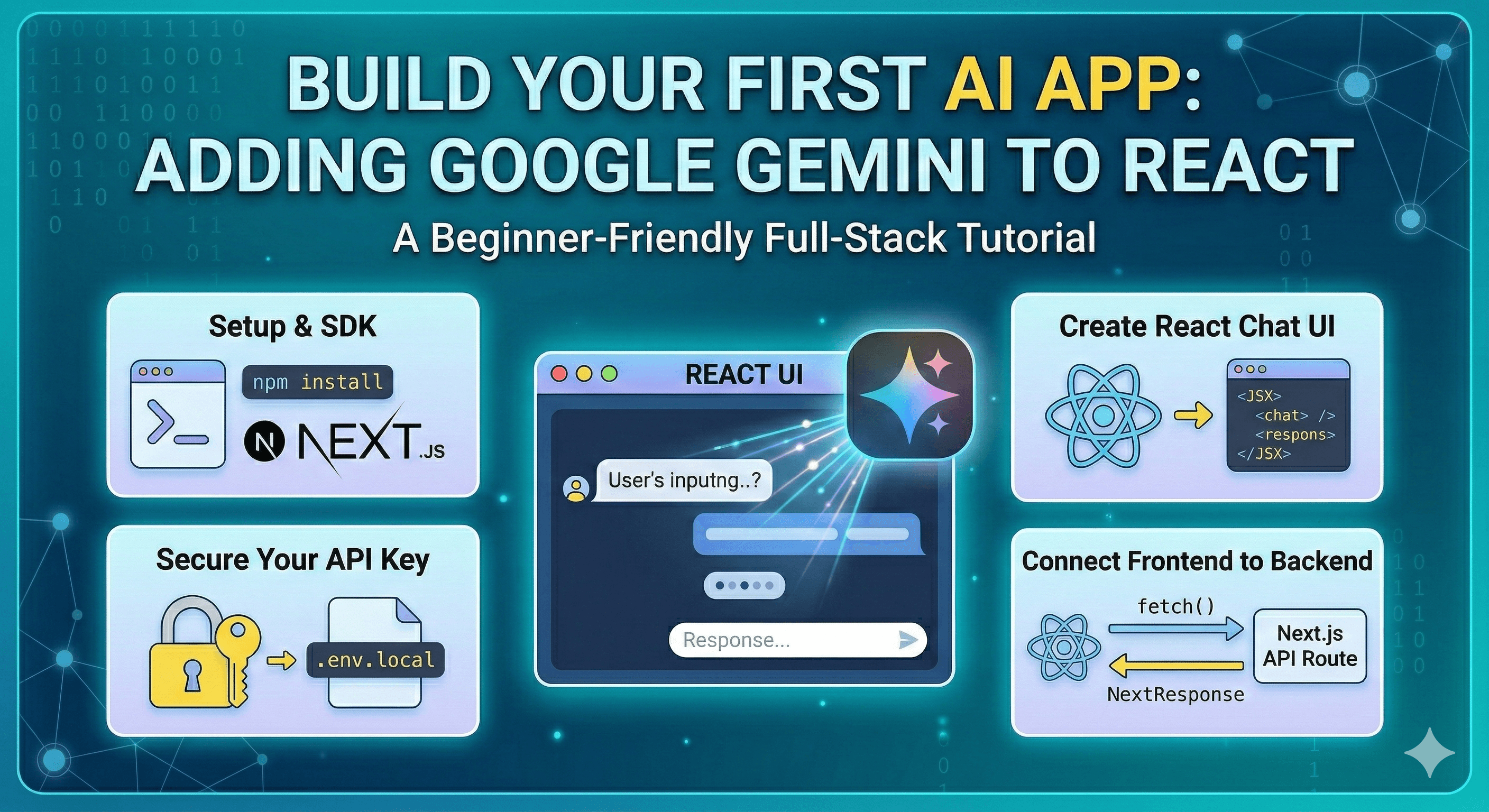
A beginner-friendly guide to integrating Google Gemini AI into your React and Next.js applications
Build Your First AI App: Adding Google Gemini to React
Hello there! If you've been seeing AI everywhere and thought, "I need a PhD in machine learning to build that," I have great news for you: you don't.
Adding intelligent, human-like text generation to your web apps is actually surprisingly simple. In this guide, we'll walk through exactly how to connect your React frontend to the Google Gemini AI model using Next.js. Let's build your first AI-powered app!
Table of Contents
- The Prerequisites - What you need before we start
- Getting Your API Key - Your golden ticket to AI
- The Golden Security Rule - Never expose your keys
- Setting Up the Backend - Creating our Next.js API Route
- Building the React UI - Creating the chat interface
- Connecting the Dots - Fetching the AI response
The Prerequisites
Before we write any code, make sure you have a basic Next.js project set up. If you don't, you can create one quickly:
# Create a new Next.js app in your terminal
npx create-next-app@latest my-ai-app

# Navigate into your project
cd my-ai-app

# Install the official Google Gen AI SDK
npm install @google/generative-ai
Getting Your API Key
To talk to Gemini, you need a secret password called an API key.
- Go to Google AI Studio (a quick web search will take you there).
- Sign in with your Google account.
- Click on "Get API key" and create a new one.
- Copy that long string of letters and numbers.
Now, create a file named .env.local in the root of your Next.js project and paste your key there:
# Inside .env.local
GEMINI_API_KEY=your_copied_api_key_here
The Golden Security Rule
Here is a crucial lesson for building production-grade apps: Never put your API key directly in your React components. If you put the key in your frontend code, anyone can open their browser's developer tools, steal your key, and use up your quota. Instead, we use a "Backend-for-Frontend" approach. Our React app talks to our own backend, and our backend talks to Google.
Setting Up the Backend
In Next.js, we can easily create a backend API route. Let's create a file at app/api/chat/route.js (or .ts if you're using TypeScript!). This acts as a secure middleman.
// app/api/chat/route.js
import { GoogleGenerativeAI } from '@google/generative-ai';
import { NextResponse } from 'next/server';

// Initialize the AI with your secure environment variable
const genAI = new GoogleGenerativeAI(process.env.GEMINI_API_KEY);

export async function POST(request) {
  try {
    // 1. Get the user's prompt from the frontend
    const { prompt } = await request.json();

    // 2. Choose the model (gemini-1.5-flash is fast and great for general text)
    const model = genAI.getGenerativeModel({ model: 'gemini-1.5-flash' });

    // 3. Ask Gemini to generate content
    const result = await model.generateContent(prompt);
    const response = await result.response;
    const text = response.text();

    // 4. Send the text back to our React frontend
    return NextResponse.json({ result: text });

  } catch (error) {
    console.error('Error generating AI response:', error);
    return NextResponse.json(
      { error: 'Failed to generate content' },
      { status: 500 }
    );
  }
}
Building the React UI
Now let's build the frontend. We need a simple input field for the user's prompt, a button to submit it, and a place to show the AI's response.
// app/page.js
'use client'; // This tells Next.js this is a frontend React component

import { useState } from 'react';

export default function Home() {
  // State to hold what the user types
  const [prompt, setPrompt] = useState('');

  // State to hold the AI's answer
  const [aiResponse, setAiResponse] = useState('');

  // State to show a loading indicator
  const [isLoading, setIsLoading] = useState(false);

  // We'll write the submission logic in the next step!
  const handleSubmit = async (e) => {
    e.preventDefault();
    // Logic goes here...
  };

  return (
    <main className="max-w-2xl mx-auto p-8">
      <h1 className="text-3xl font-bold mb-6">Ask Gemini AI</h1>

      {/* Our chat form */}
      <form onSubmit={handleSubmit} className="mb-8">
        <textarea
          value={prompt}
          onChange={(e) => setPrompt(e.target.value)}
          placeholder="Ask me anything..."
          className="w-full p-4 border rounded-lg mb-4 text-black"
          rows={4}
        />
        <button
          type="submit"
          disabled={isLoading || !prompt}
          className="bg-blue-600 text-white px-6 py-2 rounded-lg disabled:bg-gray-400"
        >
          {isLoading ? 'Thinking...' : 'Generate Answer'}
        </button>
      </form>

      {/* Display the response */}
      {aiResponse && (
        <div className="p-6 bg-gray-50 rounded-lg border border-gray-200 text-black">
          <h2 className="font-bold mb-2">AI Response:</h2>
          <p className="whitespace-pre-wrap">{aiResponse}</p>
        </div>
      )}
    </main>
  );
}
Connecting the Dots
Finally, let's fill in that handleSubmit function in our React component. We need to send the prompt to the API route we created earlier.
  const handleSubmit = async (e) => {
    e.preventDefault();
    setIsLoading(true);
    setAiResponse(''); // Clear previous response

    try {
      // Send a POST request to our Next.js API route
      const response = await fetch('/api/chat', {
        method: 'POST',
        headers: {
          'Content-Type': 'application/json',
        },
        body: JSON.stringify({ prompt }),
      });

      const data = await response.json();

      if (response.ok) {
        // Success! Update the UI with the AI's text
        setAiResponse(data.result);
      } else {
        setAiResponse('Oops! Something went wrong.');
      }
    } catch (error) {
      console.error('Fetch error:', error);
      setAiResponse('Failed to connect to the server.');
    } finally {
      setIsLoading(false); // Turn off the loading state
    }
  };
And that's it! You've successfully built a full-stack AI application. We set up a secure backend endpoint, connected to the Gemini API, and built an interactive React frontend to handle the user input and loading states.
In the real world, you can take this much further by adding conversational history (memory), system instructions to give the AI a persona, or streaming the text character-by-character so the user doesn't have to wait. But for now, celebrate your first AI integration. Happy coding!